How a Google Maps scraper generated $67,500 in pipeline for a demand gen specialist
The more you know about your audience, the better you can serve them. See how one marketer (and non-coder) used AI to pull previously inaccessible data and power a new kind of campaign.

With more than 200 million businesses and places accessible through the Places API, Google Maps is the biggest searchable database of local businesses you can get your hands on without an expensive tool stack. But the dataset is massive and often messy.
As more AI tools became available, Bharatt Arorah, outbound engineer and owner of Claygen, realized he could create a custom app to get the best Google Maps data in the hands of his clients for outbound email campaigns. The more relevant the email, the higher chance the recipient reads it and becomes interested.
With dozens of clients targeting local businesses in service areas worldwide, he needed a scalable way to get high-quality data for their campaigns. AI gave him enough leverage to solve it himself, without having to hire a developer or buy multiple subscriptions.
“I understood outbound. I understood GTM. I understood lead generation, data, copy, offers, segmentation, deliverability, and campaign execution,” says Bharatt. “But I did not think of myself as someone who could build software. AI changed that.”
Eventually, he built an automated system that sends personalized cold outbound campaigns to millions of targeted prospects, generating qualified leads for 50+ clients.
In one week, it generated:
~$67,500 in pipeline and 11 qualified leads for his agency client. By the end of the campaign, it generated 41 net-new leads in total and 145 responses. Once the results came in, Bharatt saw the potential for Google Maps as a practical database to sell to local businesses.
Since then, he’s worked with GrowthEngineX, a B2B lead gen agency, using this workflow to build targeted customer lists in hours instead of weeks. It’s been used across multiple verticals to convert cold traffic into pipeline opportunities. And it runs at ~$100/month in API costs.
“Most teams obsess over subject lines, templates, and copy tweaks,” he says. “Those things matter, but they are downstream. If the list is bad, the campaign is already broken. If the targeting is weak, even a great email will not produce the right conversations.”
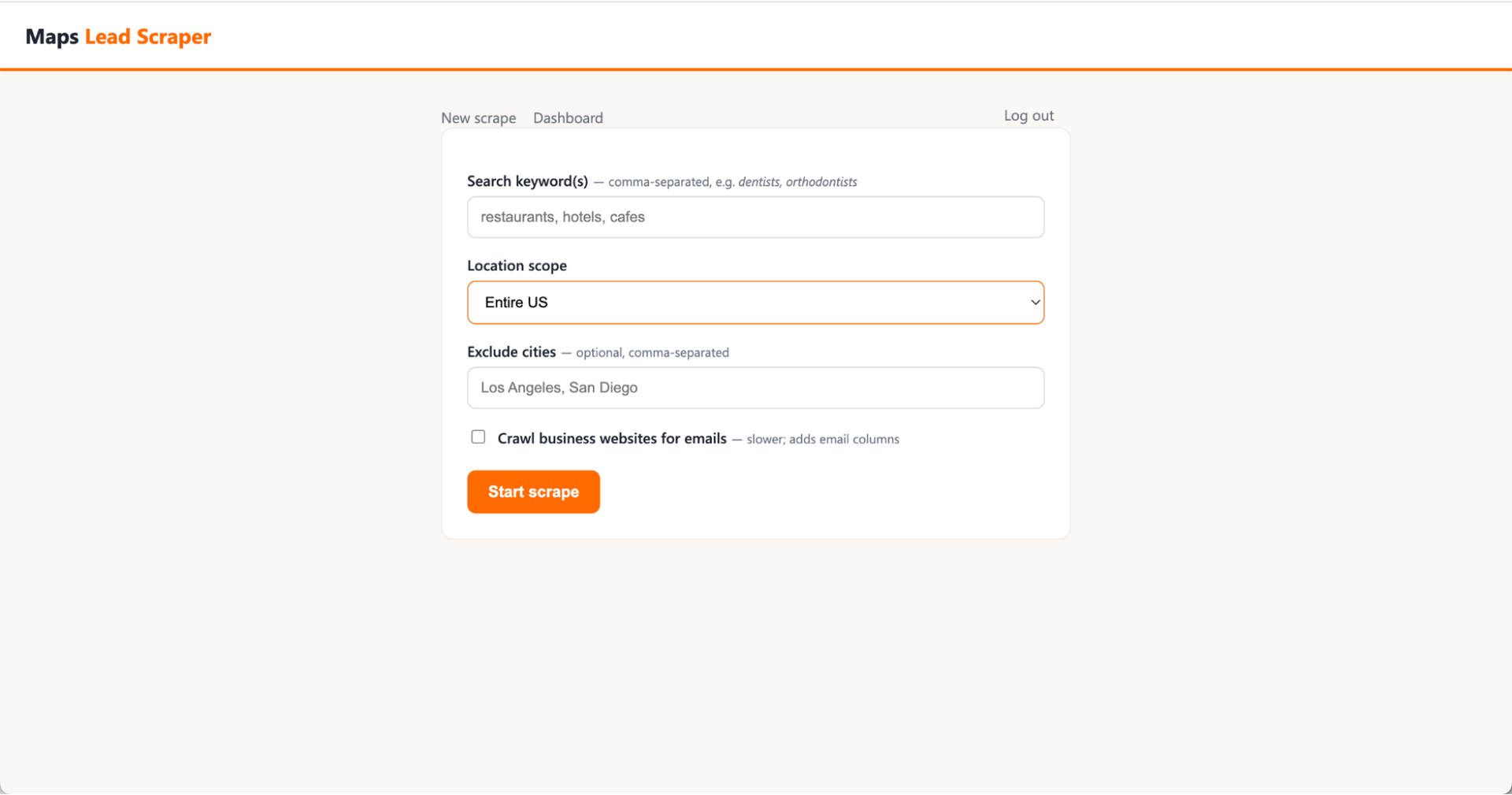
The maps scraper web app UI you’ll build from scratch.
The tool works so well that Bharatt has been hired by several B2B marketing agencies to build this exact workflow and has trained founders who wanted to build their own scraper. You’ll build the same Google Maps scraper to unlock access to over 200 million local businesses’ data.
If you need to find new local business leads, but can’t afford a developer or a bigger marketing tool stack to source them quickly and accurately, then this build will show you how.
What this system runs on
This entire build uses:
- Google Maps: Holds the local business data we need.
- RapidAPI Maps Data API: We’re using Maps Data API from RapidAPI, which will let us send structured requests to Google Maps and get back structured business data.
- Claude Code desktop app: Claude Code’s desktop offering gives you an integrated terminal, file editing, and live app preview right inside the Claude app. We suggest having some familiarity with Claude Code before attempting this workflow.
The workflow powering millions of hyper-targeted outbound emails
Before you start: set up your tools
- Install Claude Code (you’ll need at least a Pro plan to use)
- Install Python (3.11 or newer)
- Create a new empty project folder. Name it something easy to find, like “maps-scraper” on your Desktop. In Claude Code, open that folder as your project.
Step 1: Get the coordinates file
Because the Maps Data API only reads coordinates, we need this file to be able to enter a location in (e.g. Dallas, Florida or The US) and the API will translate.
We’re using US coordinate pairs spaced 5 km apart, sourced from GeoNames. This is how the scraper gets business data in a specific location without missing anything or double-counting businesses with multiple locations in the same area. Download and keep it in your project folder.
For Bharatt’s build, his target market was businesses in the United States. He couldn’t simply enter “the entire US” into the Maps Data API. He used a CSV of 27,160 unique US coordinate pairs spaced roughly 5 kilometers apart.
The point of spacing them out like that was to make the search dense enough to capture local businesses across different areas, but not so dense the scraper wastes API calls by searching nearly identical locations again and again.
Step 2: Get the Maps Data API
Next, subscribe to the Maps Data API on RapidAPI. The free plan will do for this build.
The free plan gives you 1,000 requests per month, which is more than enough to scrape a business category in a mid-sized city in the US. The basic plan is $3/mo, making it one of the cheapest APIs out there, and it will cover a search query for the entire United States.
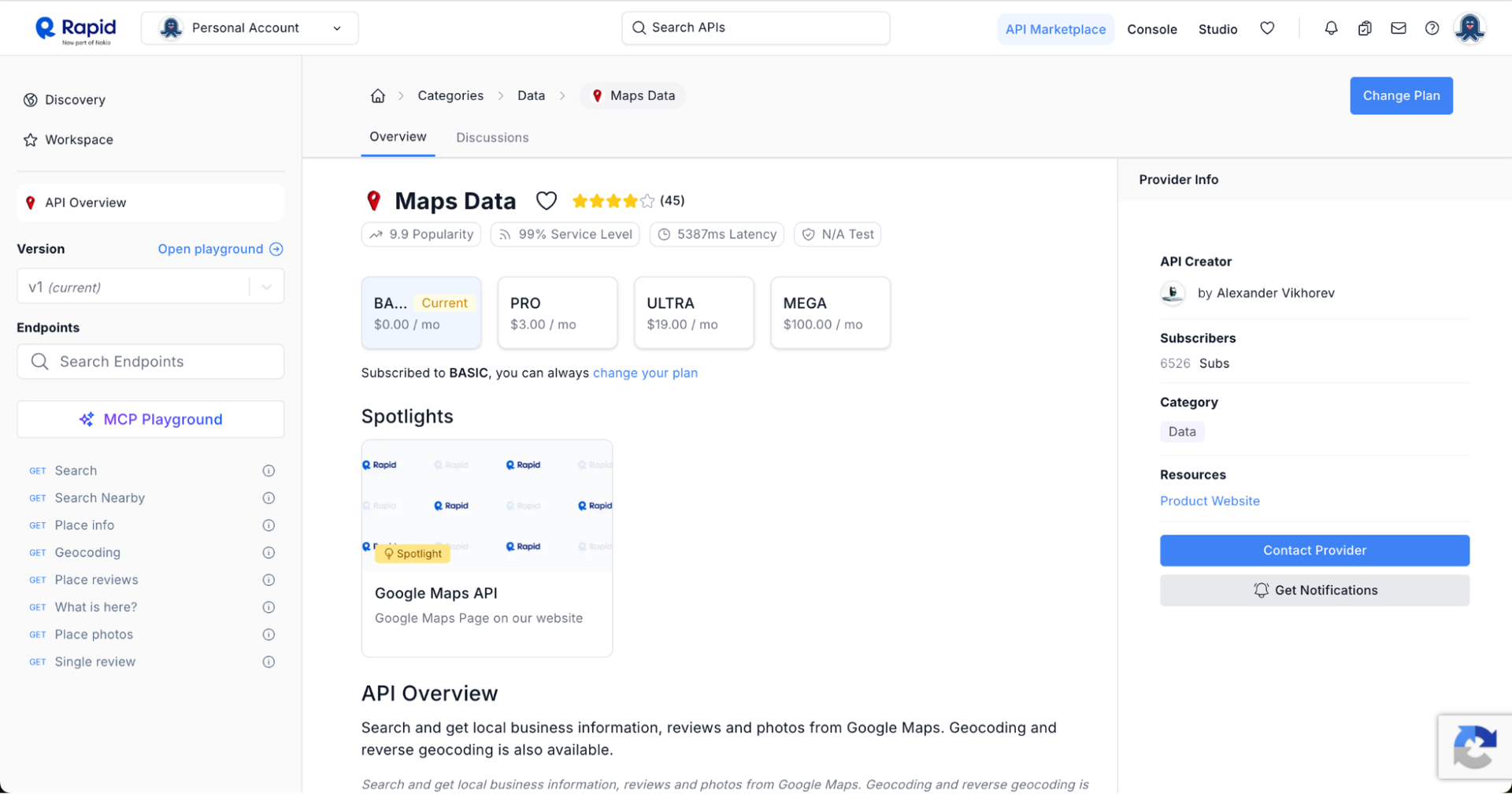
Maps Data Overview page
After you’ve signed up, go to the Maps Data API overview page. In the left sidebar, find the Search endpoint and click it.
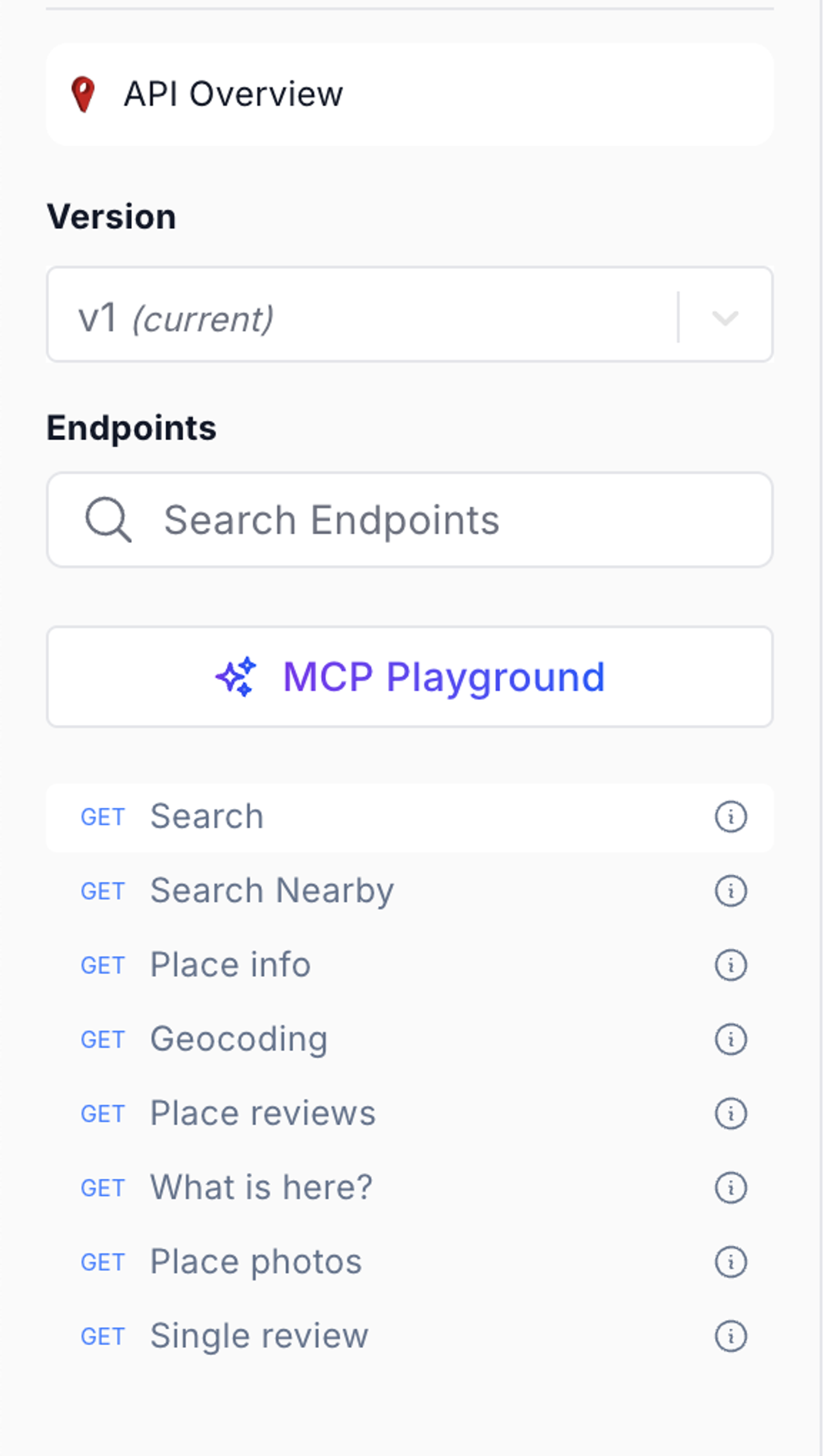
Click on “Search” in the Endpoints menu
After clicking the Search endpoint, you’ll land on the App tab, where you’ll see your credentials and can grab your key:
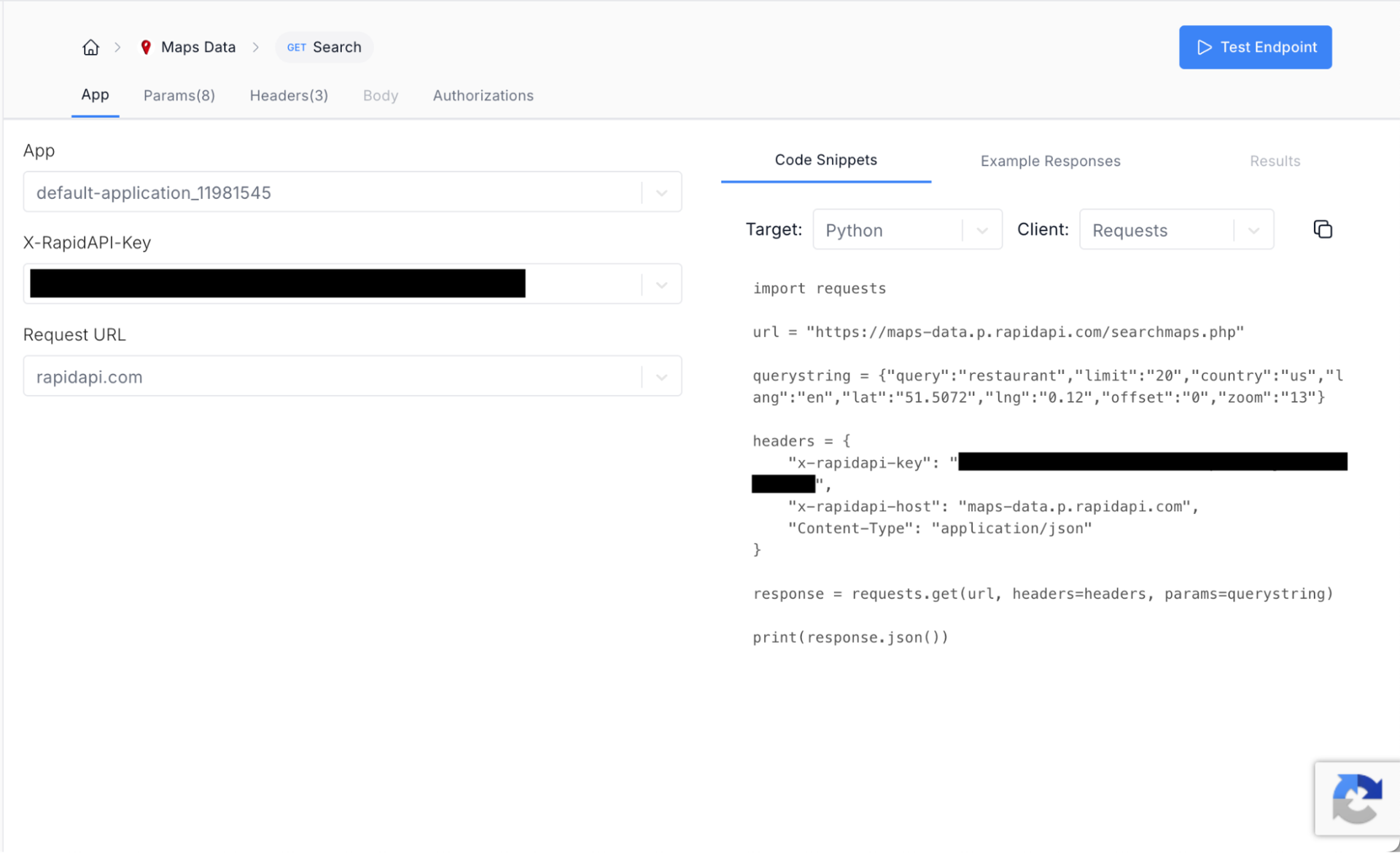
Grab your credentials from this page
X‑RapidAPI-Key: your secret key
You’ll need to copy this key for the next step.
Step 3: Create an .env file
The .env file stores your credentials and keeps them private. Think of it like a password manager for your app. Instead of typing in an API key or token every time, the app reads them automatically from a secure file in your folder.
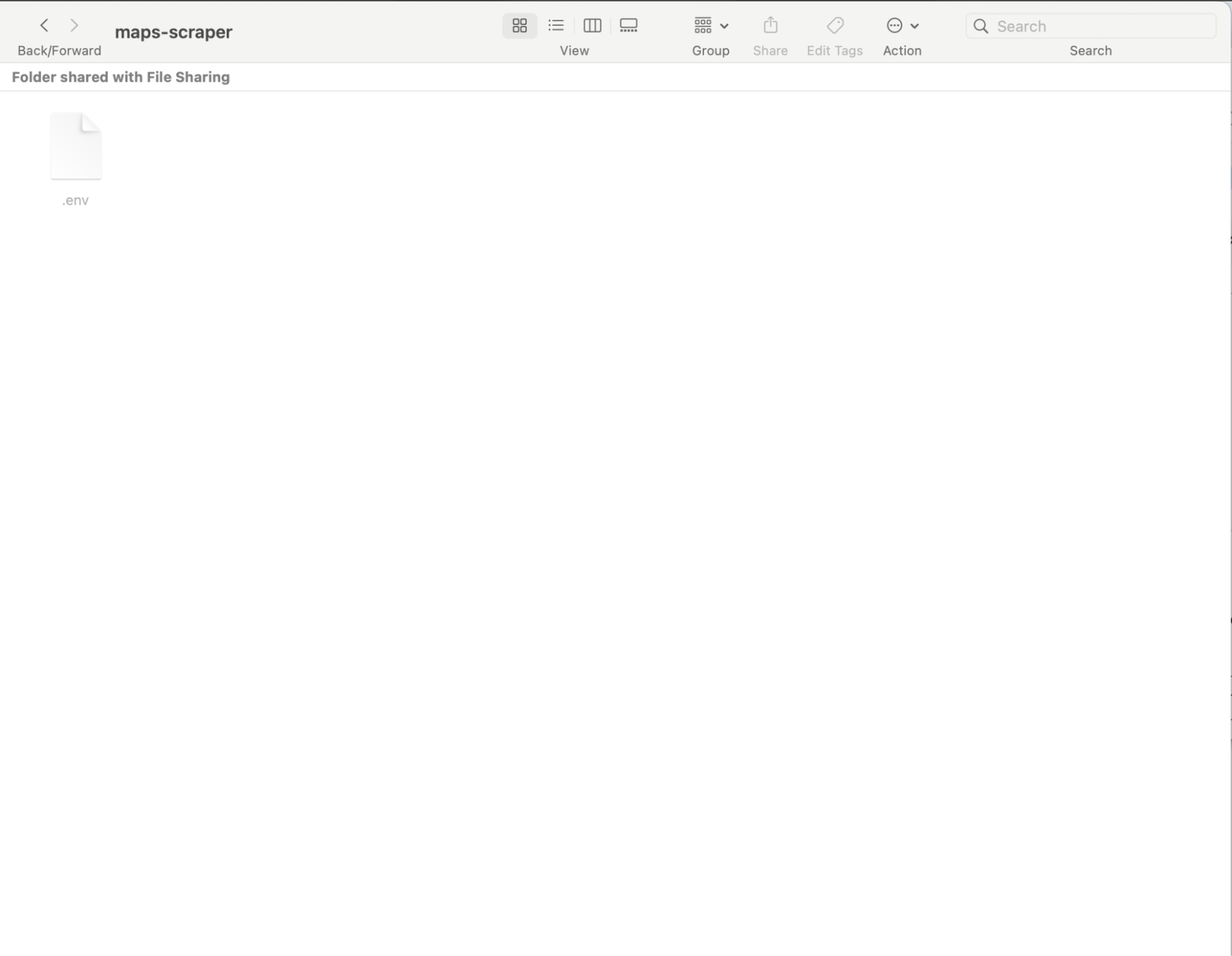
Here’s the project folder with the .env file
In your project folder, create a file and name it “.env” and put your RapidAPI credentials inside:
Use this
RAPIDAPI_KEY=paste_your_real_key_here
RAPIDAPI_HOST=maps-data.p.rapidapi.com
Replace the placeholder text with your key and save.
Alternatively, let Claude create the .env for you when you instruct it to build the scraper.
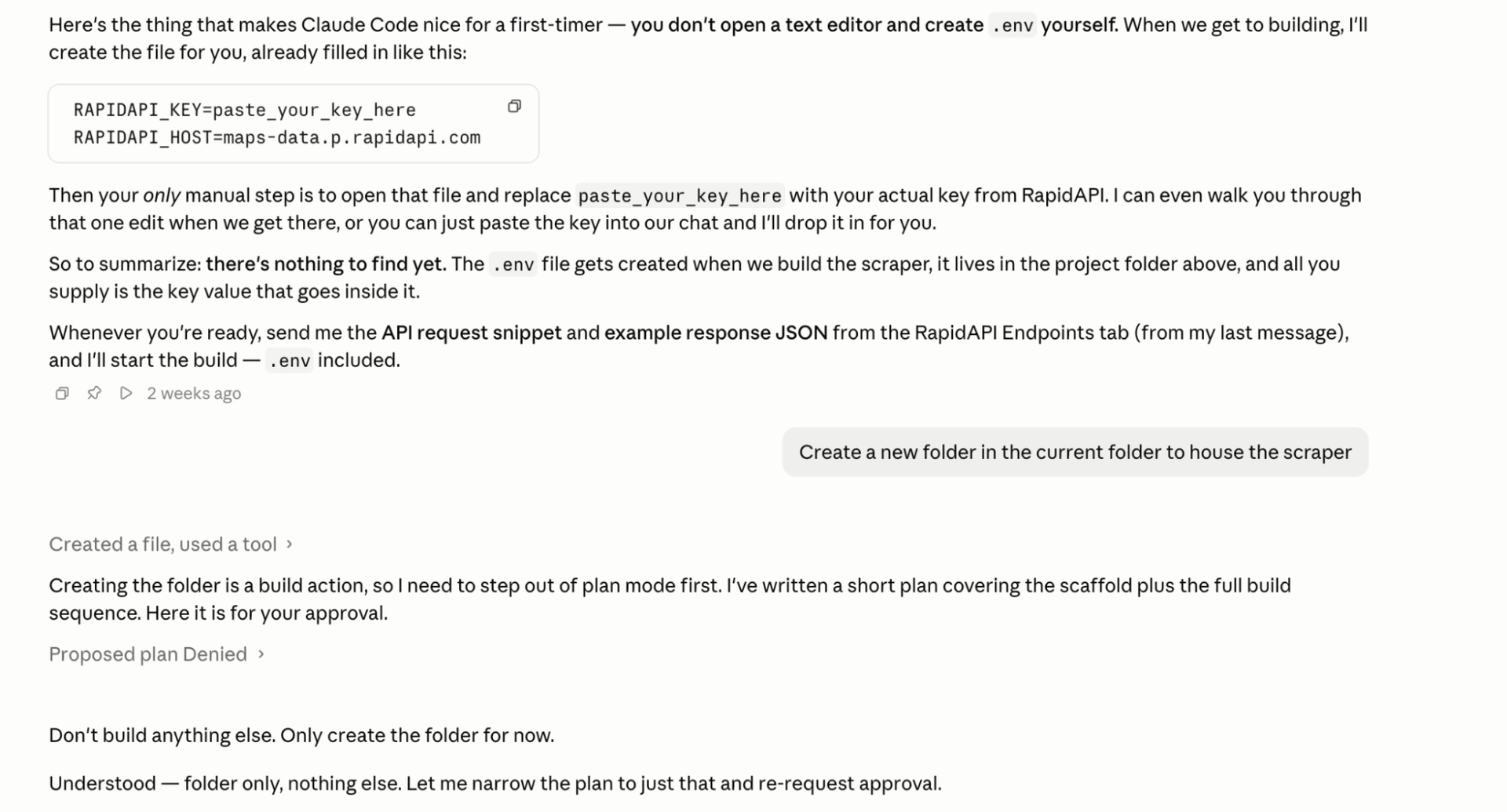
Claude can create the .env automatically
You’ll still need to enter your API key and save, however.
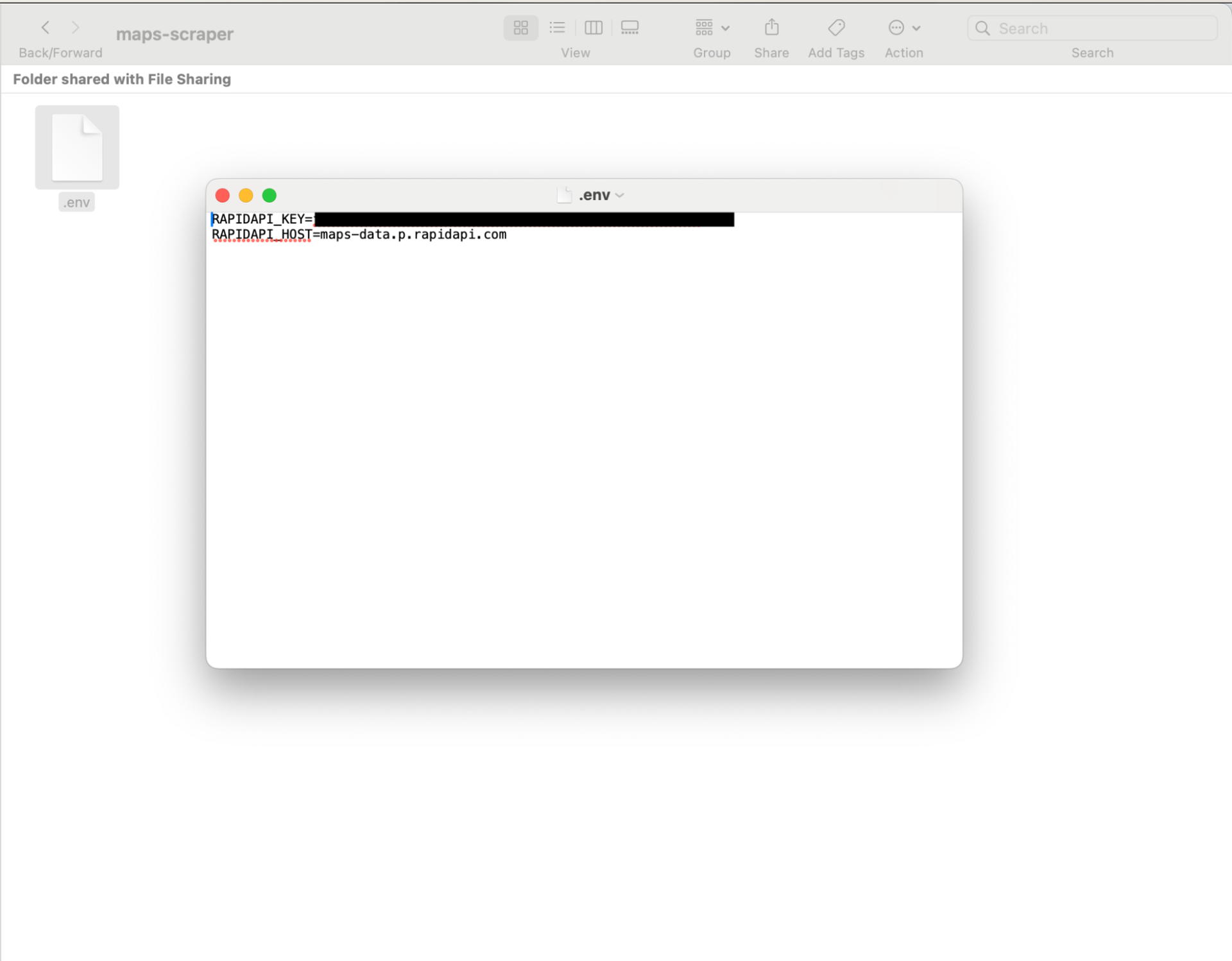
Enter your API key and save
Step 4: Do a small test before building
In this tutorial, we’re prompting the interface to build what we need, step-by-step. Before running a large scale scrape, which can light tokens on fire, do a small test to make sure your credentials are set up properly.
The prompt below sends a single request to the Maps Data API to make sure your API key is entered correctly in the .env file. It also checks that the API can read the coordinates file by attempting to return a real business. If a real listing comes back, it works!
Prompt — Test the API before building anything
Create a file called test_api.py that makes exactly ONE request to the Maps Data API to confirm my setup works without wasting my quota. It should: load RAPIDAPI_KEY and RAPIDAPI_HOST from .env; read the first coordinate from 5km_deduped_coords.csv; call https://maps-data.p.rapidapi.com/searchmaps.php with query=restaurant, limit=1, country=us, lang=en, offset=0, zoom=13, and that coordinate’s lat/lng; send the key and host as the x‑rapidapi-key and x‑rapidapi-host headers; print the HTTP status and the first business name. If the status is 401/403, tell me my key is wrong; if 429, tell me I’ve hit my quota.
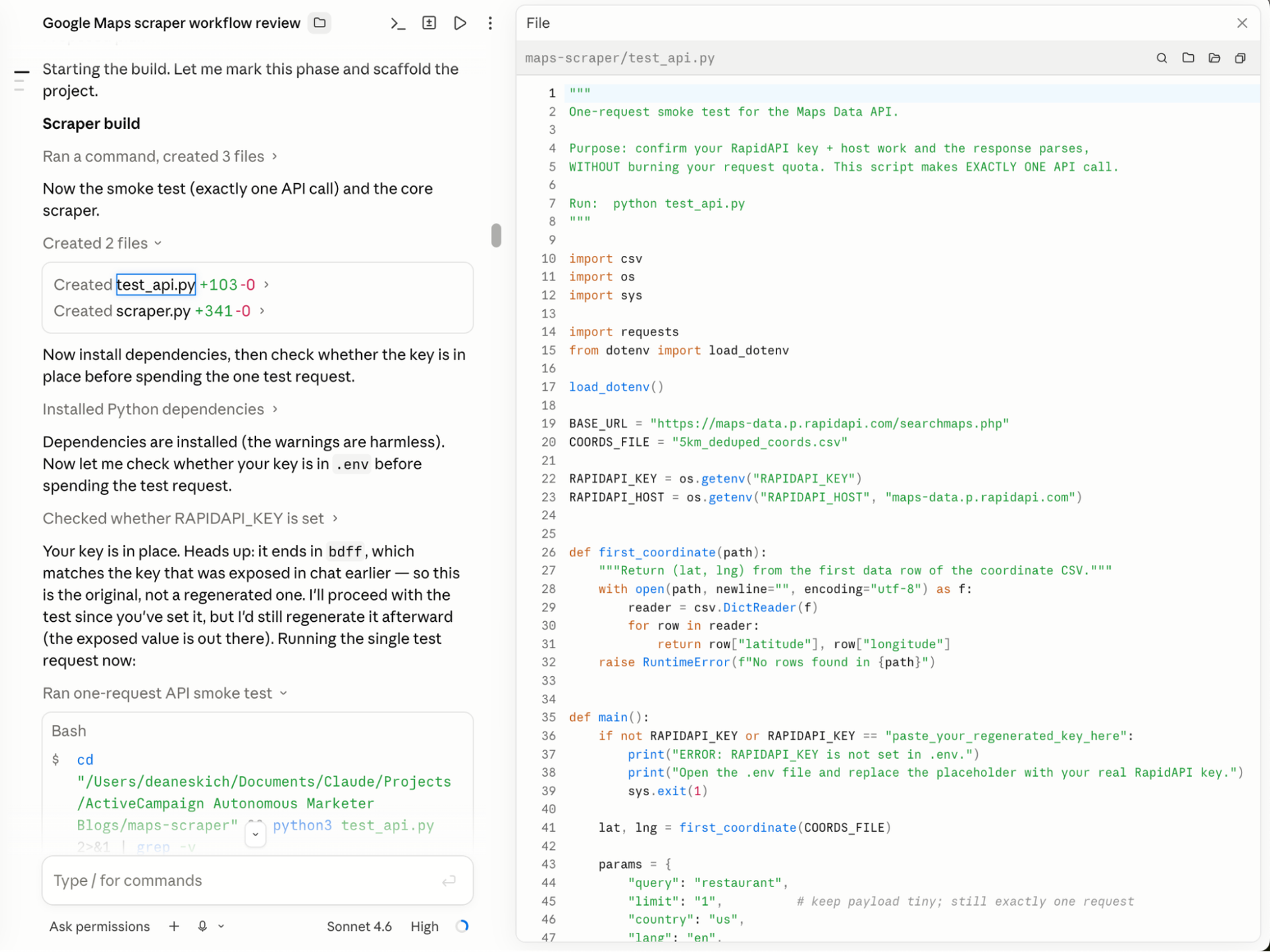
What a successful smoke test result will look like
What are you looking for? You want the test to print an HTTP 200 code and a real business result before moving on. Don’t worry if you don’t get it the first time, Claude will tell you if there’s an error and what to do to fix it.
Step 5: Build the basic CLI scraper
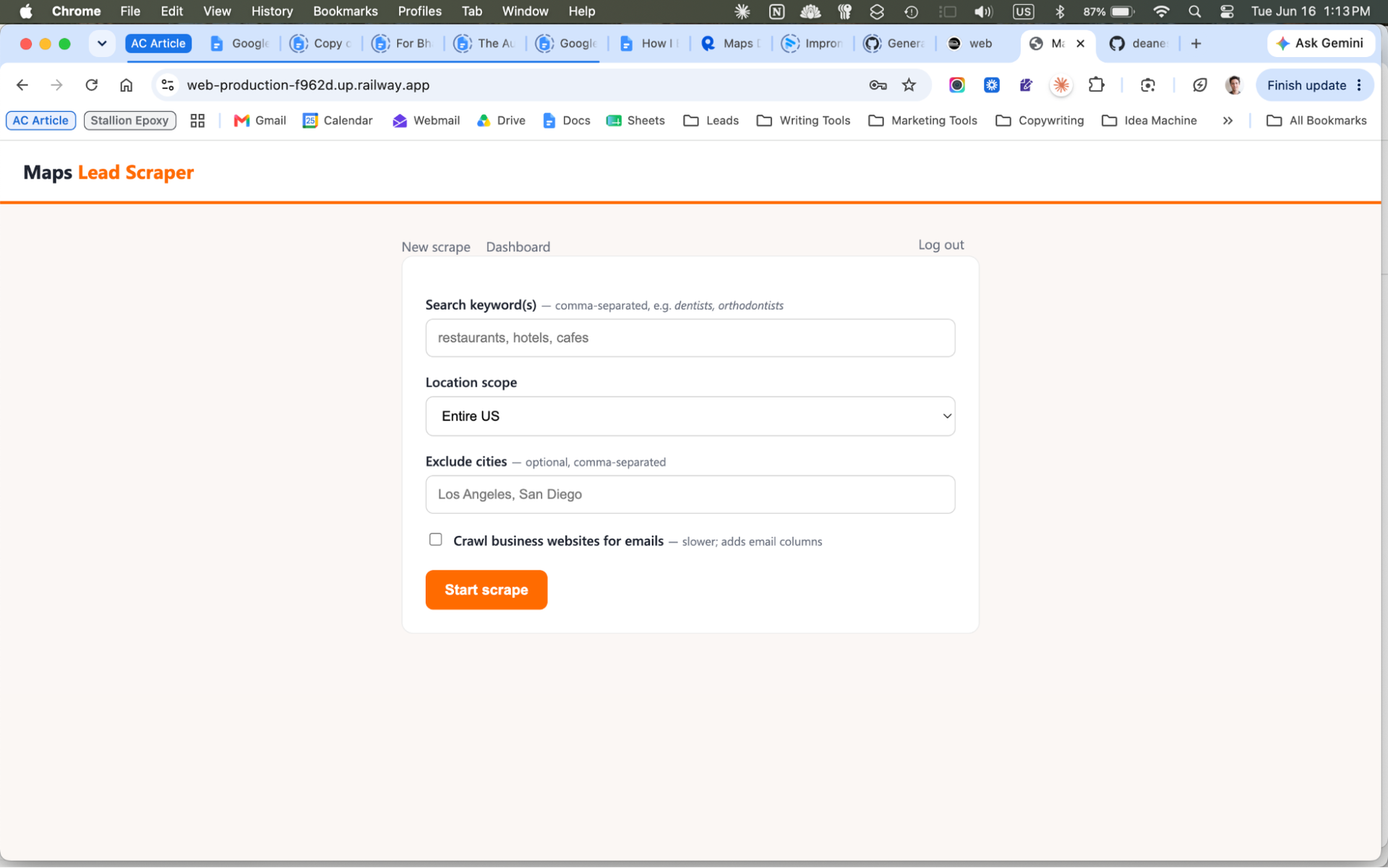
What this build will eventually look like
First, you’ll get the basic scraper working. Later, you’ll turn it into a fully functioning web app.
Prompt — Build the basic scraper
You are helping me build the first working version of a Google Maps lead scraper for local business prospecting. Create a Python command-line tool that takes a business search term, searches across a coordinate grid, calls the RapidAPI Maps Data API, deduplicates the results, and exports a clean CSV.
Coordinate file: 5km_deduped_coords.csv in the project folder (~27,600 US rows). Columns: country code, postal code, City, State, State code, admin name2, admin code2, latitude, longitude. Inspect the file and match the columns tolerantly (case-insensitive).
API contract (use exactly this):
- Method/URL: GET https://maps-data.p.rapidapi.com/searchmaps.php
- Headers: x‑rapidapi-key (read from env var RAPIDAPI_KEY) and x‑rapidapi-host (read from env var RAPIDAPI_HOST, default maps-data.p.rapidapi.com).
- Query params: query (the keyword), lat, lng, and defaults limit=20, country=us, lang=en, offset=0, zoom=13. Put these defaults in one CONFIG block at the top so I can edit them.
- Response JSON shape: {“data”: [ { …business… }, … ]}. Each business object has these fields (capture all that are present): business_id, name, full_address, phone_number, website, rating, review_count, timezone, place_link, types (a list — join into a “category” column), price_level, and state (an open/closed text — output it as “open_status” so it doesn’t clash with the US state).
Do not hardcode secrets. Read RAPIDAPI_KEY from the environment (it’s in .env). Create scraper.py and requirements.txt.
CLI flow: ask (1) the business keyword; (2) location scope — Entire US / specific state(s) / specific city/cities; (3) if state scope, accept comma-separated state codes like TX,FL,NY; (4) if city scope, accept comma-separated city names. Filter the coordinate CSV to the chosen scope.
Use 30 parallel threads, process coordinates in batches of 100, and handle: timeouts, HTTP errors, rate limits (429) with exponential backoff, empty/malformed responses, failed coordinates after max retries, and Ctrl‑C without losing collected results.
Deduplicate by business_id when present; otherwise by a normalized combination of name + address + phone + website.
Output a CSV named after the query (e.g. restaurants_scraper.csv) with these columns: business_id, name, category, full_address, city, state, phone_number, website, rating, review_count, price_level, open_status, timezone, latitude, longitude, place_link, source_keyword, source_city, source_state, source_lat, source_lng. Also write failed_requests.csv with: keyword, source_city, source_state, source_lat, source_lng, error, attempts.
Print progress: coordinates selected, current batch, requests completed, raw results, deduped results, output path. Write clean modular functions: load coordinates, filter coordinates, call API, retry, parse response, deduplicate, save CSV, run CLI. After writing the code, give me the exact commands to install dependencies and run the scraper.
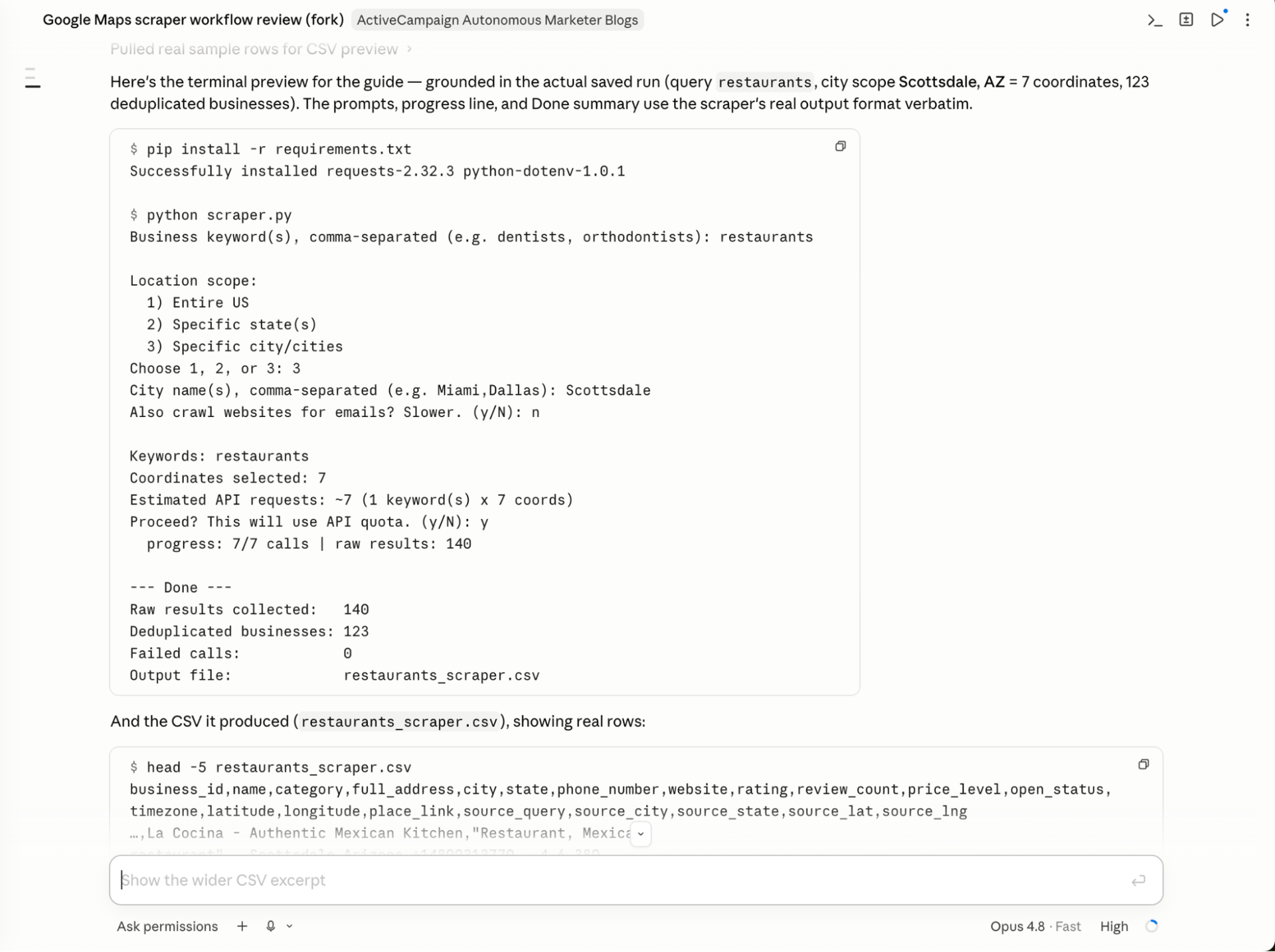
Claude verifies the scraper back end is working and outputs an accurate CSV
The first prompt explains the full functionality:
- What API to use
- The coordinates CSV
- Keyword input
- Location logic
- Deduplication requirements
- CSV export
- Expected output
The first version should run directly in the Claude Code interface. Once it works, the next step is giving it a simple dashboard where a user can enter a search term and location, run the scraper, see progress, and download the final CSV.
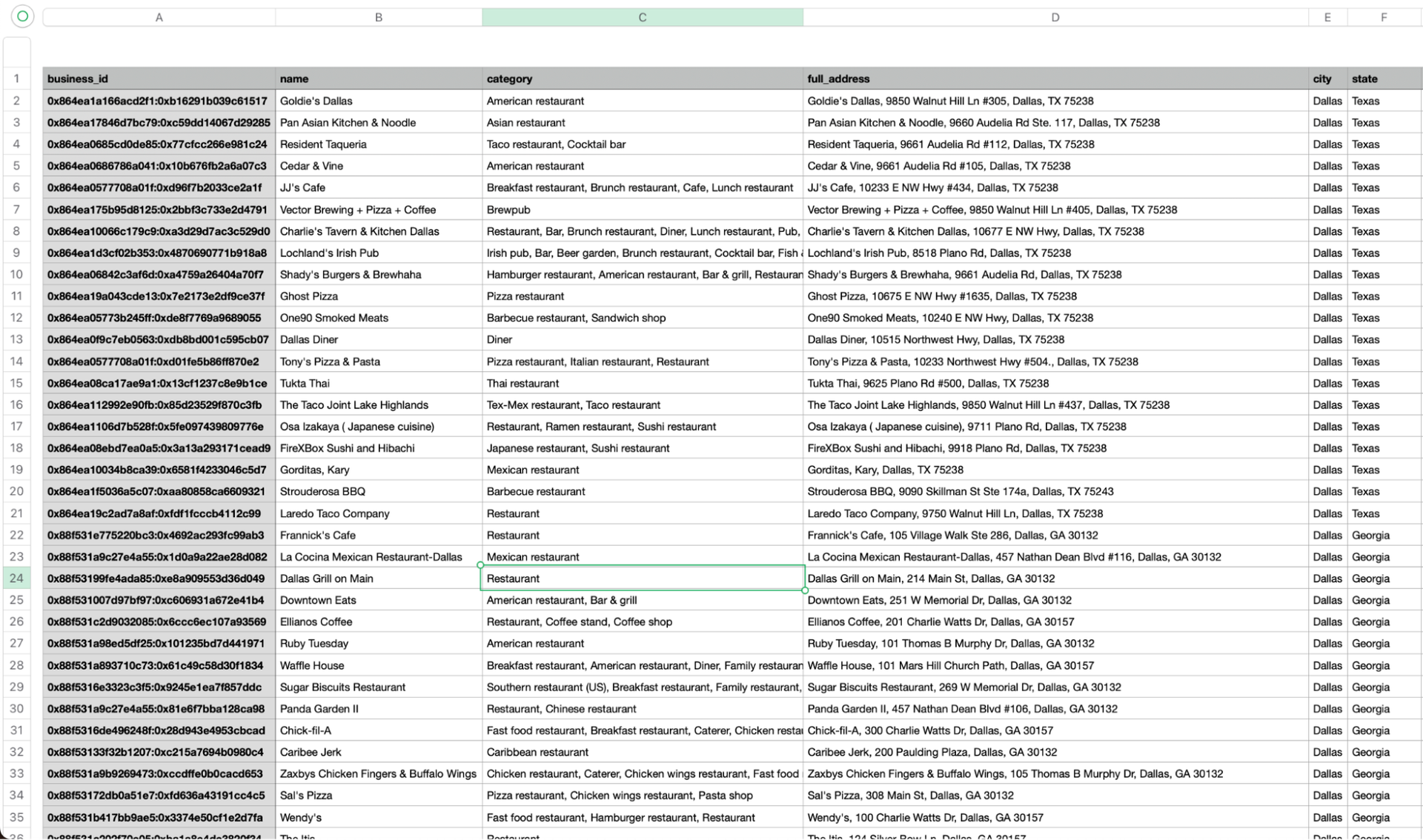
A downloadable list of local businesses from Google Maps with all the data a marketer needs
Tip: Whenever you’re inputting large prompts or building a huge tool, use Plan Mode to make sure it works before going to the next step. Plan Mode locks the AI into read-only operations. This way you can review your build to make sure it works before anything gets built.
Step 6: Add multi-keyword support
Searching one keyword at a time is inefficient. This update lets you type keywords like yoga, gym, pilates and the scraper runs all three in parallel, removes duplicates, then combines the results into one CSV.
For Bharatt’s outbound campaigns, he might be targeting local businesses that have similar needs and characteristics—say, single-location fitness studios that need a website—but don’t have many keywords in common on Google. With this feature he’s able to capture info on the entire fitness market in an area with a single search.
Prompt — Add multi-keyword support
Update the scraper so it supports comma-separated keywords. Like if someone types “Yoga, Gym, Pilates”, it should run a separate search for each keyword, then combine all the results into one CSV and remove duplicates across keywords.
After updating the code, tell me exactly how to run a multi-keyword search from the terminal.
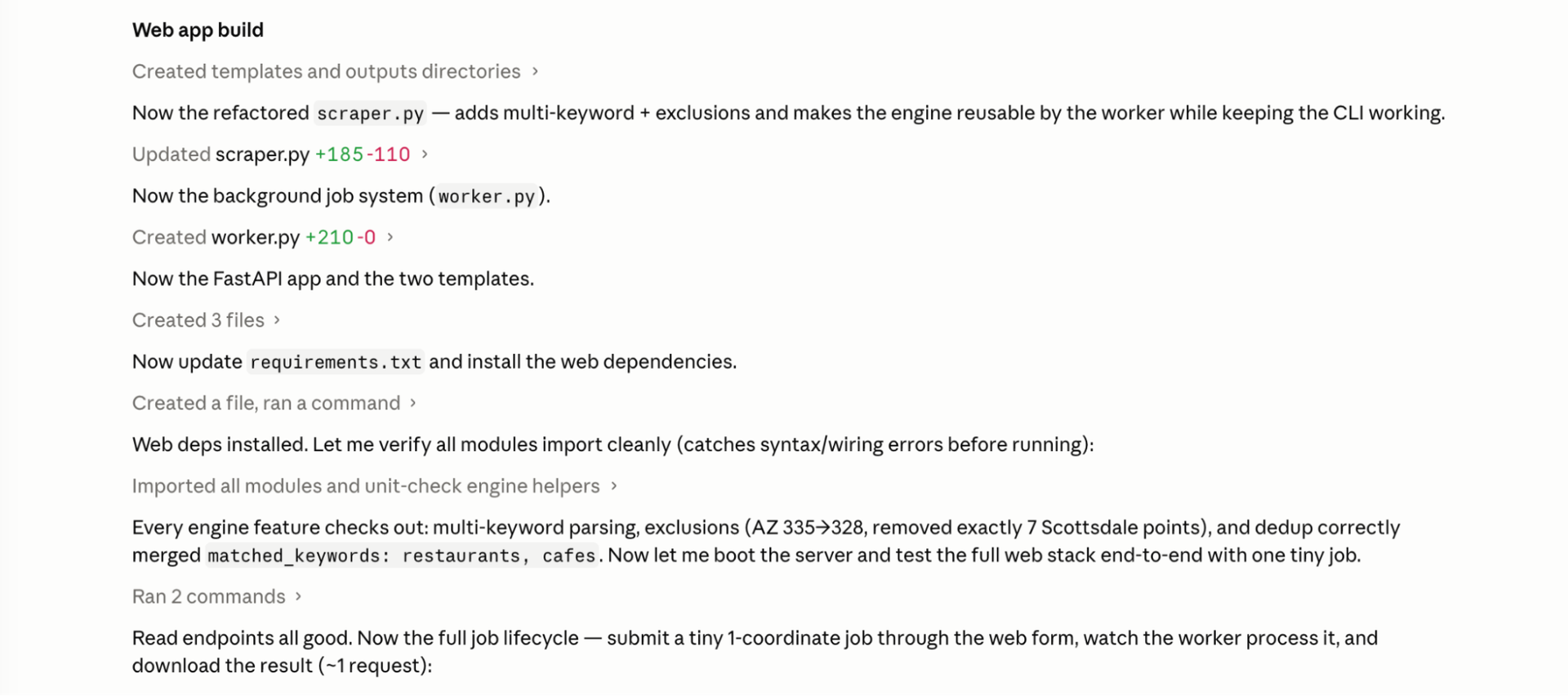
Claude adds features for multiple keywords, city exclusions and builds the background job system
Step 7: Add support for city exclusions
This step lets you filter out places you don’t want in your list. Bharatt serves many different clients with heavy presence in specific cities. Rather than blast out emails to a broad region, he can pinpoint the locations his clients serve or are targeting for a particular campaign. That way, he only gets relevant businesses.
Prompt — Add city exclusions
Add support for excluding specific cities.
If the user selects a broad location scope, like an entire state or multiple states, ask whether they want to exclude any cities. The user should be able to enter comma-separated city names to exclude.
For example: Los Angeles, San Francisco, San Diego
Before scraping, remove any coordinate rows where the city matches one of the excluded cities. Make the matching case-insensitive and trim extra spaces.
After filtering, print how many coordinates were removed and how many coordinates remain.
Do not change the rest of the scraper behavior.
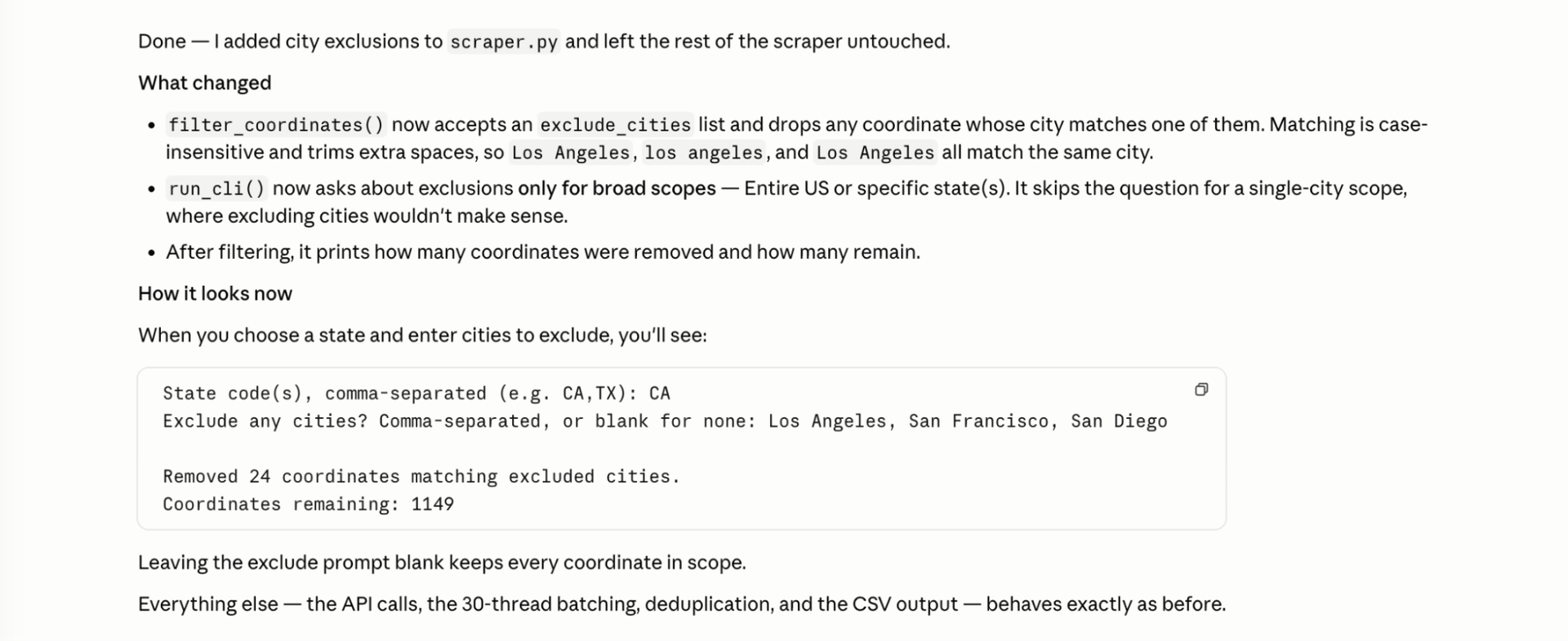
Now you can exclude cities in the scraper
Step 8: Build the background job system
Once you’ve built all the features you need and are happy with the output, you’re ready to give it a user interface, so you and your team can use it on the web.
This step turns the script into a real app. It’ll show you the status of all your jobs and let you queue up and run queries automatically. This lives in ‘worker.py‘ and becomes the engine for the web app.
Prompt — Build the background job system
I want to turn this into a web app. First, create a background worker system. It should store jobs in a JSON file, with statuses like queued, running, completed, failed, cancelled. A background thread should poll for queued jobs and run the scraper for each one. The scraper should report progress back so the job status updates as it runs. If a job gets cancelled, it should stop mid-scrape. Put this in worker.py.
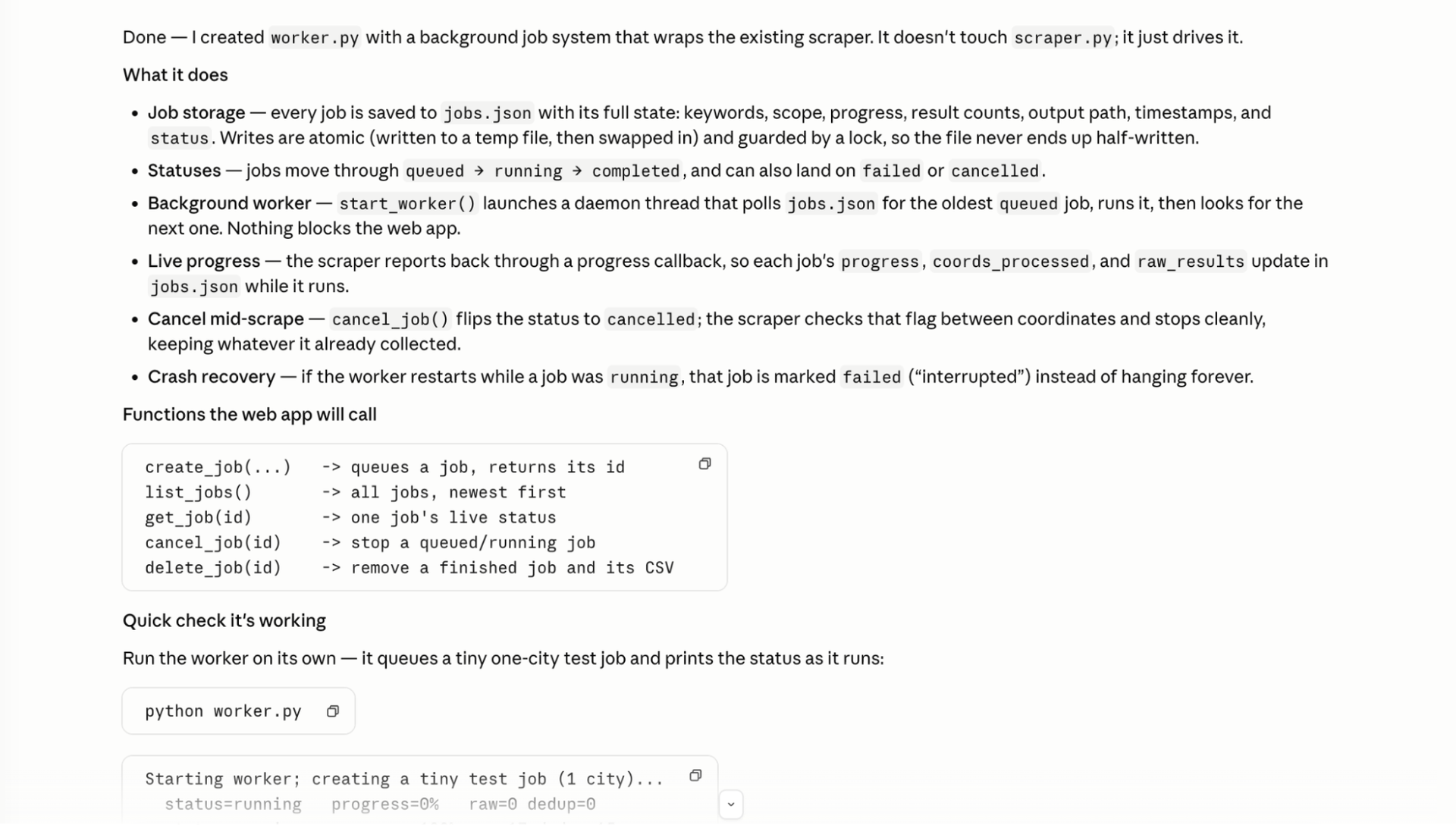
This will give the dashboard job status, progress, storage and cancellation features
You can add your own branding by prompting it “Hey, make it orange with a modern design.”
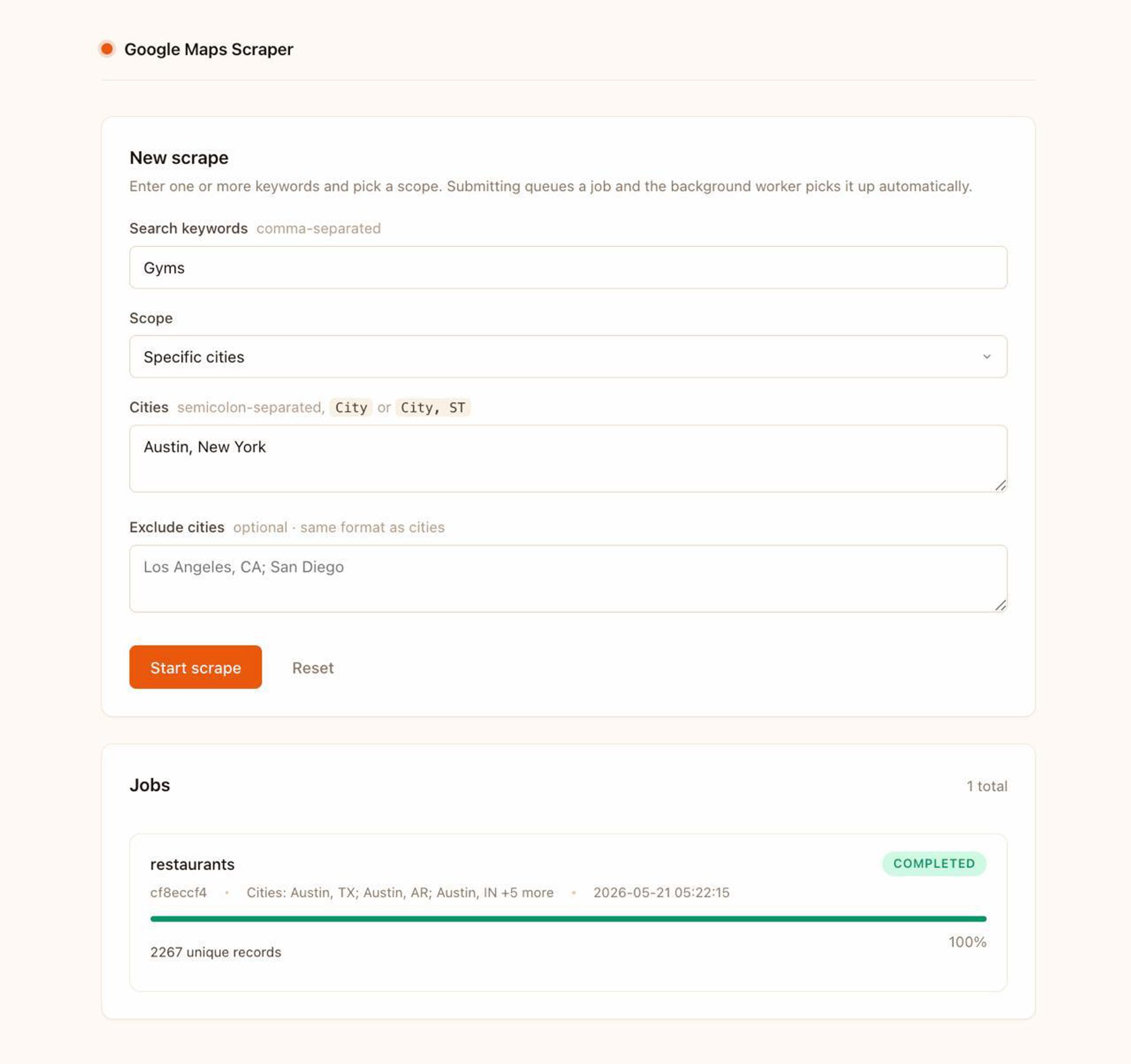
Map scraper web app interface
Step 9: Build the web app and form page
Now let’s build a web app with a simple form where anyone on your team can enter a keyword, pick a scope (entire US, states, or cities), exclude cities, and start scraping. Additional jobs are added to the queue automatically.Step 9: Build the web app and form page
Now let’s build a web app with a simple form where anyone on your team can enter a keyword, pick a scope (entire US, states, or cities), exclude cities, and start scraping. Additional jobs are added to the queue automatically.
Prompt — Build the web app and form page
Now create a FastAPI web app in app.py with a simple web UI. I need:
- A form page where the user can enter a search query (supports comma-separated keywords), pick a scope (entire US, specific states, or specific cities), and optionally exclude cities. When submitted, it should create a job in the queue.
- Hook it up to the background worker so jobs start processing automatically.
- Create a requirements.txt with everything needed.
- Use Jinja2 templates. Make it look clean and modern.
Additional requirements:
- In requirements.txt, pin these versions and include python-multipart (needed for form submission) and itsdangerous (needed for login sessions). Use the modern Starlette TemplateResponse(request, name, context) call signature, and put all HTML templates in a templates/subfolder.
Tip: Specify the color scheme you want. Make it match your company’s branding if you’re deploying this for your team.
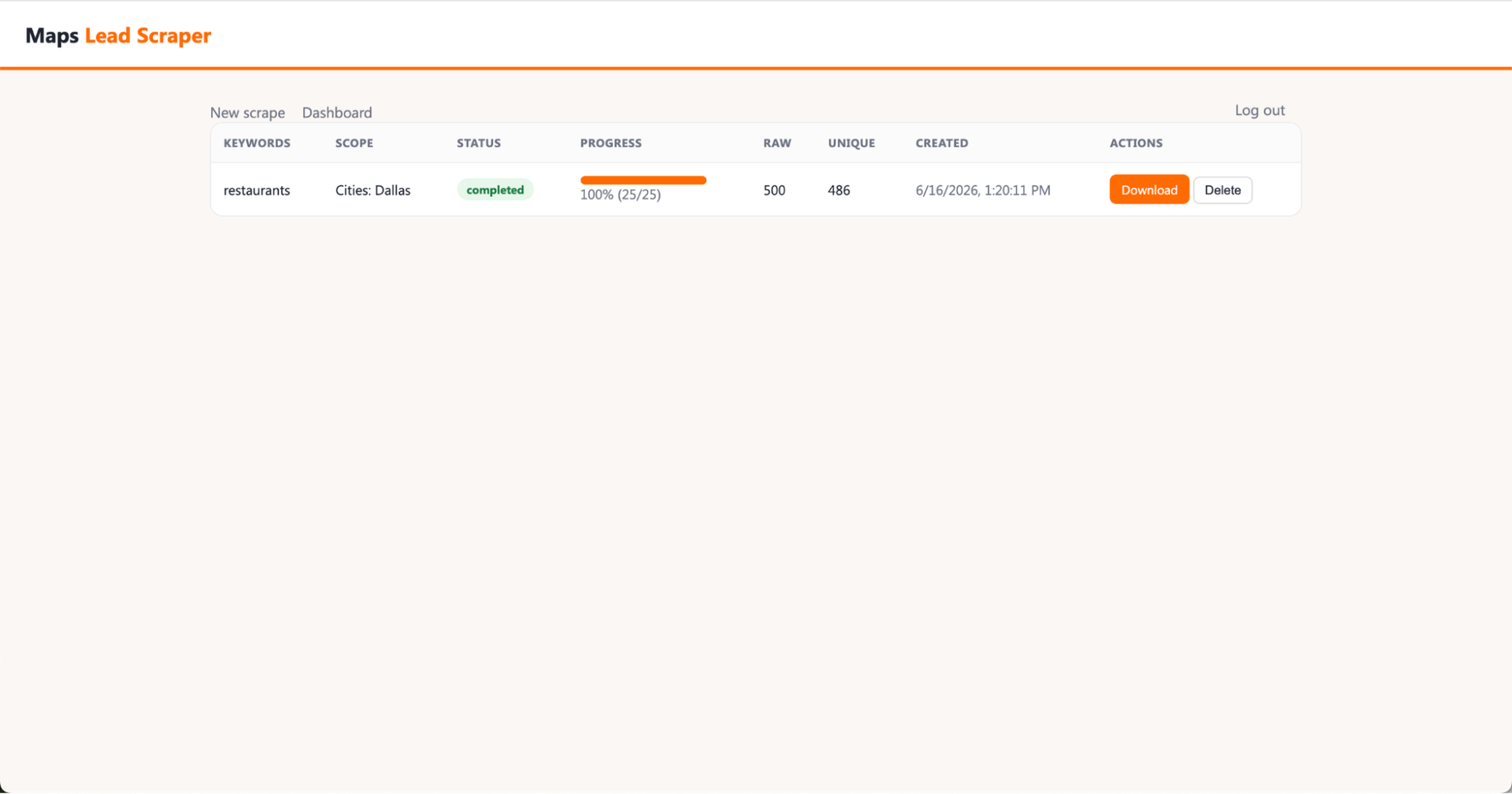
Dashboard showing multiple business categories scraped across different locations
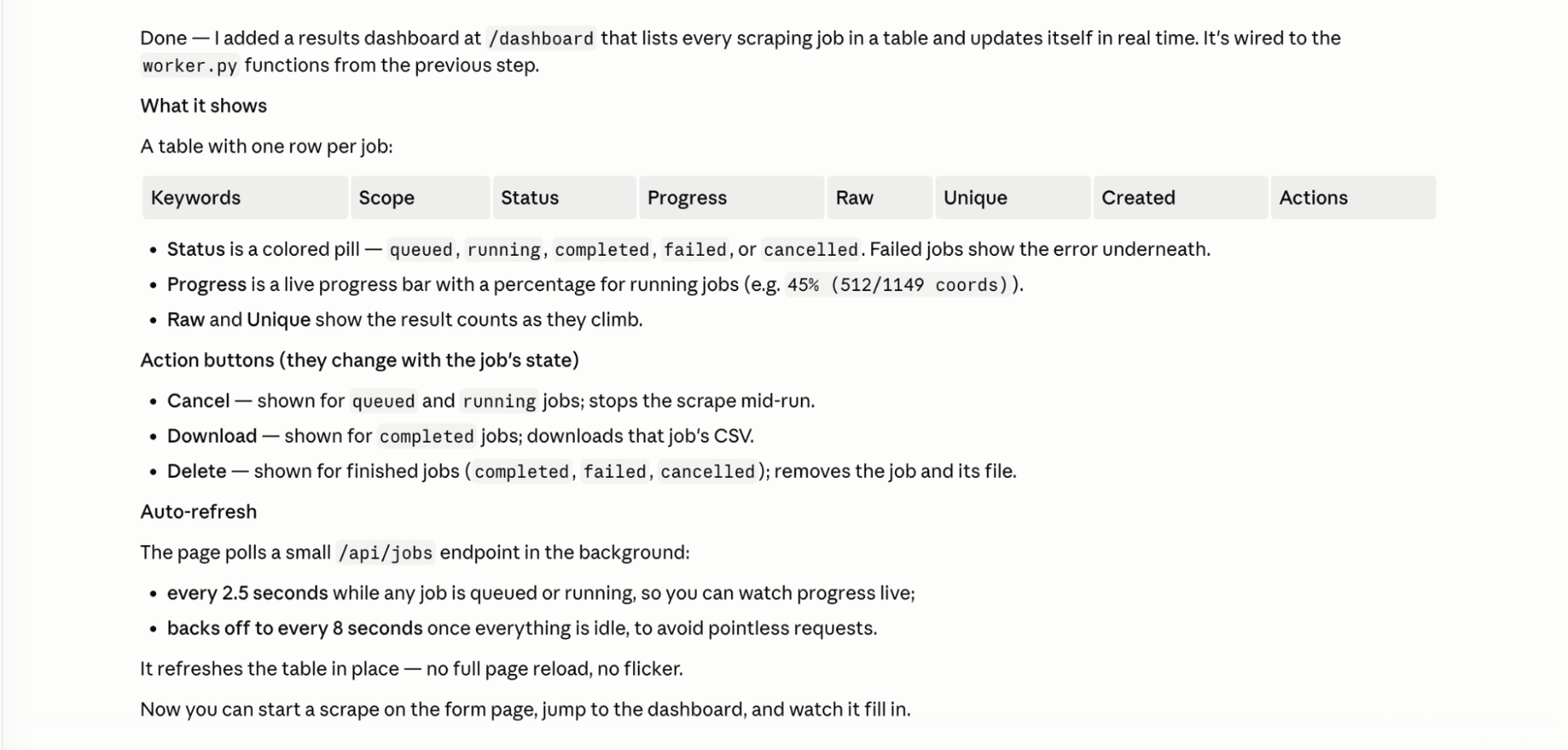
The back end functionality of the results dashboard
Step 10: Build the results dashboard
Now let’s build a results and jobs dashboard on top of this.
Prompt — Build the results dashboard
Add a results page that shows all scraping jobs in a table — the query, location, status, progress, number of results, and when it was created. For running jobs, show a progress bar. Add buttons to cancel running jobs, download the CSV for completed jobs, and delete old jobs. The page should auto-refresh every few seconds when there are active jobs so you can watch progress in real time.
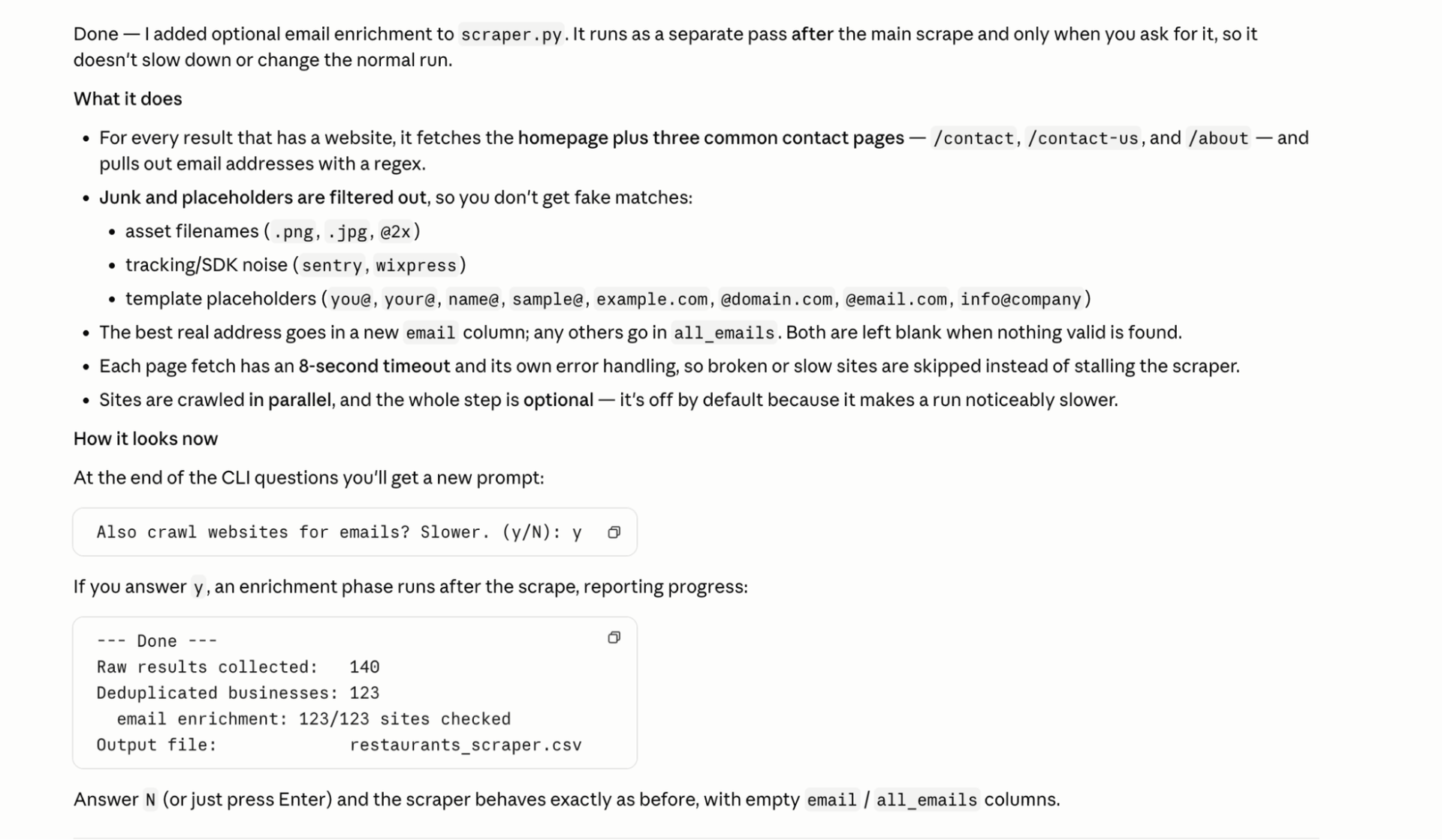
This step adds email enrichment so the emails you pull from websites are more accurate
Step 11: Add email enrichment (optional)
To take it one step further for email campaigns, you’ll want to enrich email addresses for each contact.
Put the prompt below into Claude Code.
Prompt — Add email enrichment
Add optional email enrichment to the scraper. For each business result that has a website, visit the site and try to find a public email address. Check the homepage plus a few common contact pages (/contact, /contact-us, /about). Extract visible email addresses with a regex, but filter out junk and placeholders — asset filenames (.png, .jpg, @2x), tracking SDKs (sentry, wixpress), and template placeholders (you@, your@, name@, sample@, example.com, @domain.com, @email.com, info@company). Put the best real email in a column called “email” and any others in “all_emails”; leave blank if none found. Use short timeouts and error handling so broken or slow sites don’t stop the scraper, and run it across sites in parallel. Make it optional, since it makes the run slower.
Or import into your enrichment tool
Bharatt also uses Clay for this step. It gives you a visual representation of spreadsheets where you can add AI agents to feed into your automation workflows.
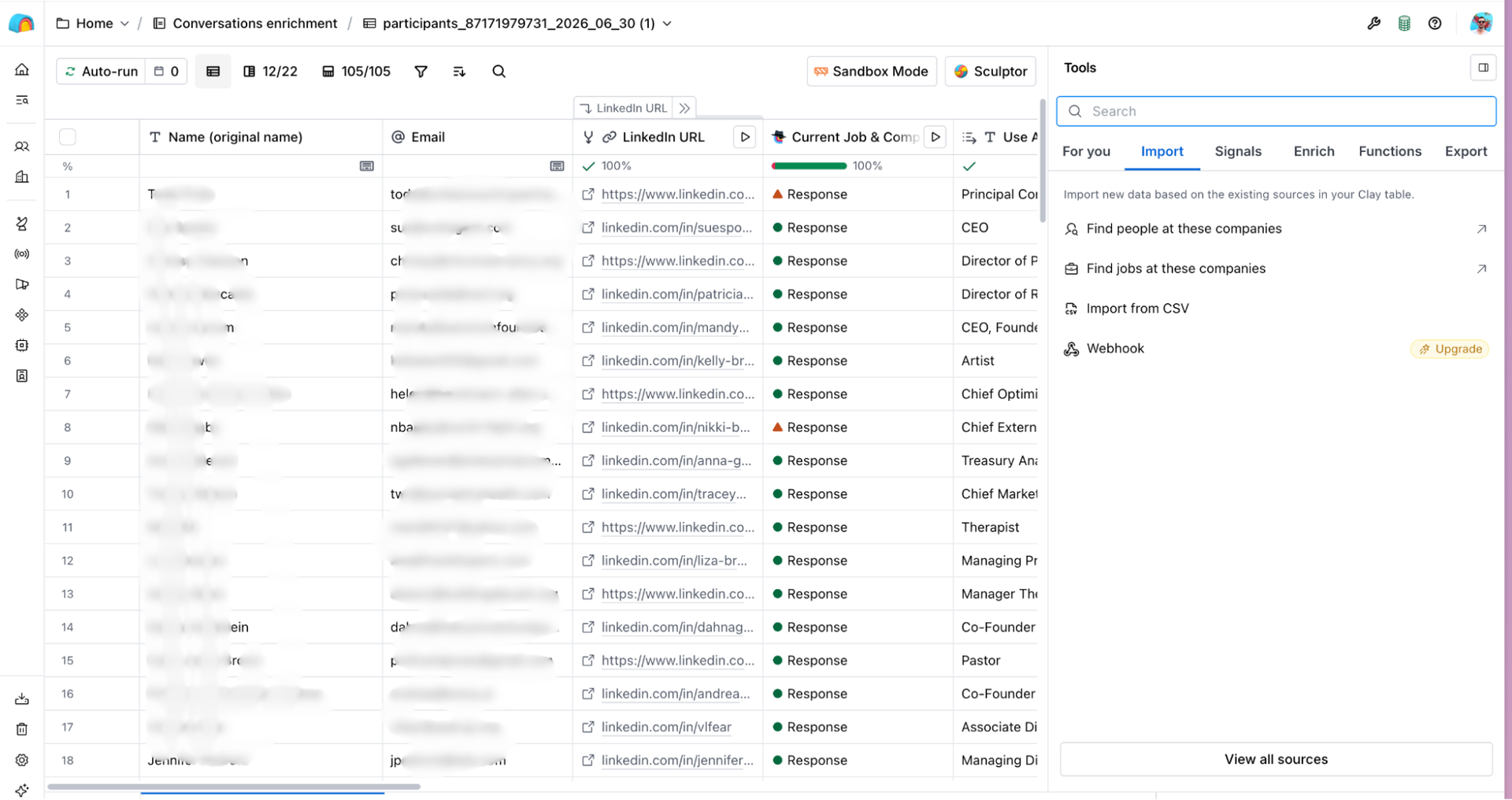
Importing CSVs manually via Clay
In Clay, you can make a Clay table to put in all of the CSV — either using a manual import or by adding a button in the app that says “Send to Clay for email enrichment.” From there you run an agent that crawls each website, finds email addresses, and verifies them using an email validation tool, giving you a list of valid email addresses you can reach out to.
Results: 41 net-new leads from Google Maps data
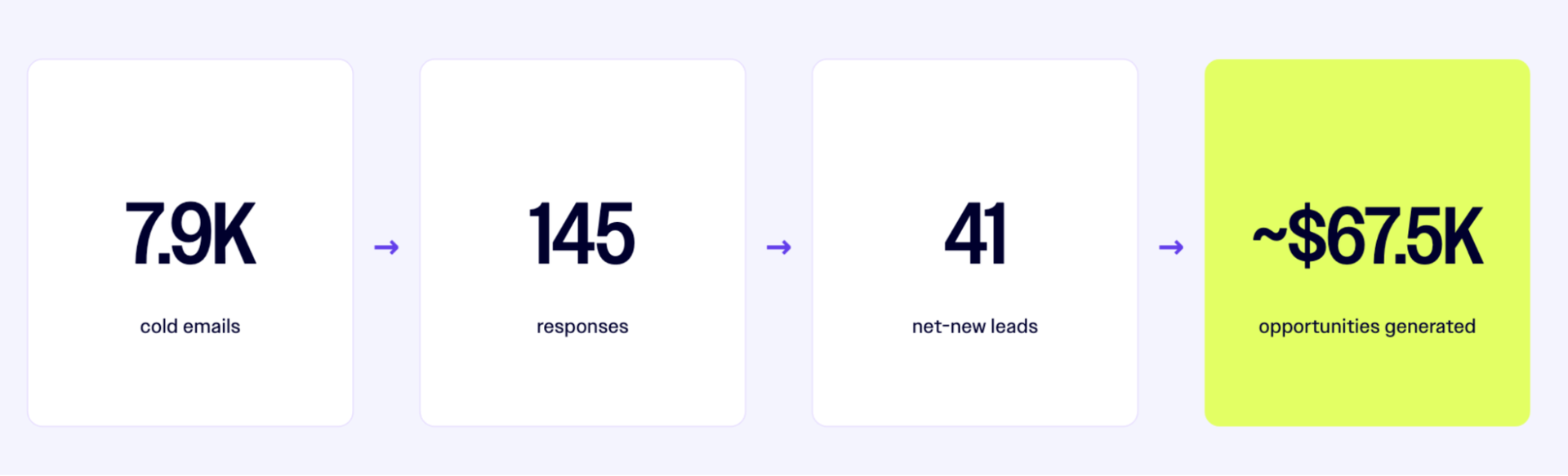
Cold email campaign results for design agency client, using data scraped from Google Maps
Here’s what this kind of workflow achieved for Bharatt Arorah and his B2B clients:
- Sent millions of personalized emails across his entire client portfolio
- Rebuilt client TAMs across multiple verticals in hours instead of weeks
- Powered list-building for targeted email outreach for 50+ B2B business clientsRuns at ~$100/month in API costs
With a 3.86% reply rate, the results are comparable to cold B2B email benchmarks. The difference is, those results didn’t require a developer or bigger marketing tools to achieve them. For a scrappy team that would otherwise skip out on getting local business data from Google Maps entirely, every one of those 41 leads is upside.
This workflow opens the door to acquiring net-new business using a tool you built yourself. What could you use this for?
Look-alike audiences for non-digital campaigns Say you’re running a web design agency and work mostly with home improvement contractors in the US. You can pull up a detailed list of prospects in your entire TAM who don’t have a website. From there you can send out cold emails, set up lookalike audiences for advertising, or simply find out what metro areas have the most prospects to run print or out-of-home (OOH) ads (because your target audience doesn’t spend a lot of time online). |
Reputation management prospecting using ratings as a filter A reputation management agency could scrape dental offices in a metro area with a rating below 3.8 and 50+ reviews and send a targeted pitch. |
Local SEO audits and competitive gap analysis Find where your competitors are clustered and if there’s a market gap you can serve. Scrape “urgent care clinics in Tampa.” You can immediately see which clinics dominate in the reviews (and likely the local search rankings), which ones are thin on reviews, and uncover geographic clusters with no clinic at all. Any clinic with few reviews is an opportunity to reach out and offer to help them close the gap between them and competitors. |
Vertical-specific agency new business development at scale A PPC agency that specializes in home services can scrape “HVAC companies,” “roofing contractors,” and “plumbers” across every major US metro in an afternoon. The company can filter for businesses that have websites and fall under a certain review threshold, then build a targeted outbound program that would have taken weeks to assemble manually. |
Pre-event prospecting Before attending a trade show or industry conference in a specific city, scrape your category for a targeted list of local prospects to warm up in advance. A SaaS platform presenting at a Chicago conference could scrape “marketing agencies” in the Chicago metro, filter for those with websites, and have their reps reach out on LinkedIn or email ahead of the conference. |
Your turn
As Bharatt has proven with this build, you don’t need fancy tools to scrape Google Maps leads at scale. You can build a system your team owns in an afternoon that you pay for only when using. For marketers on scrappier teams, AI gets rid of production and operations bottlenecks, so you’re no longer constrained by budgets or product roadmaps. If you’d otherwise miss out on this data, or spend hours manually pulling emails from Maps
Now marketers can spend more time personalizing messages, testing out different positioning and doing strategic work that gets you closer to delighted customers but there’s never enough time for.
You know, the stuff we like doing.
Related
More data from the AI Lab.
